 SHADOWNODE
SHADOWNODE
SHADOWNODE
Guides / Using your console
After you order, every service you own lives in one place. Log in with your ShadowNode account — same username and password — and manage power, credentials, backups and more.
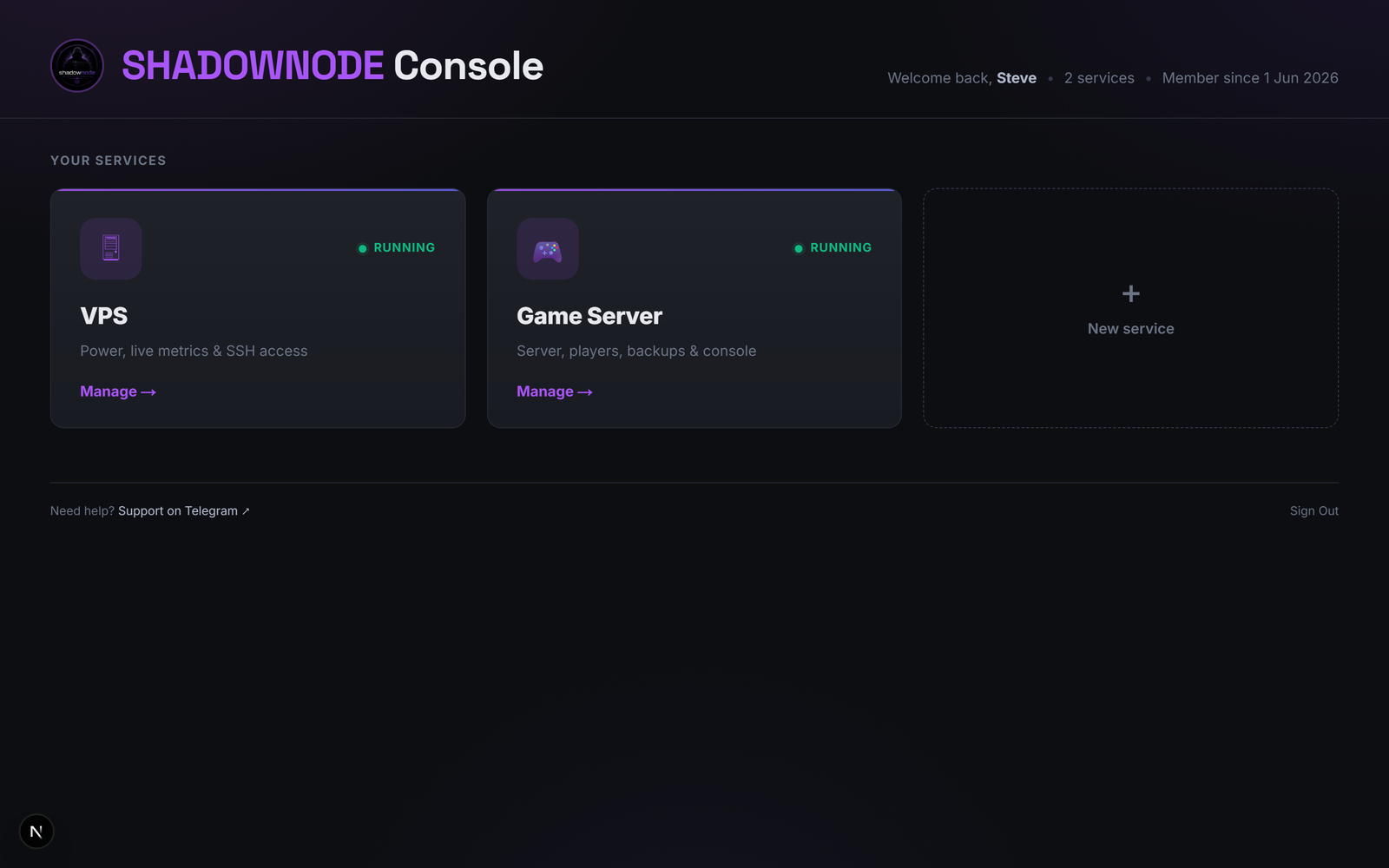
Right after login you see every service you own as a card, each with a live green dot = running status. Click Manage to open one, or New service to order another. Storage and n8n open in their own app; VPS and game servers open the console views below.
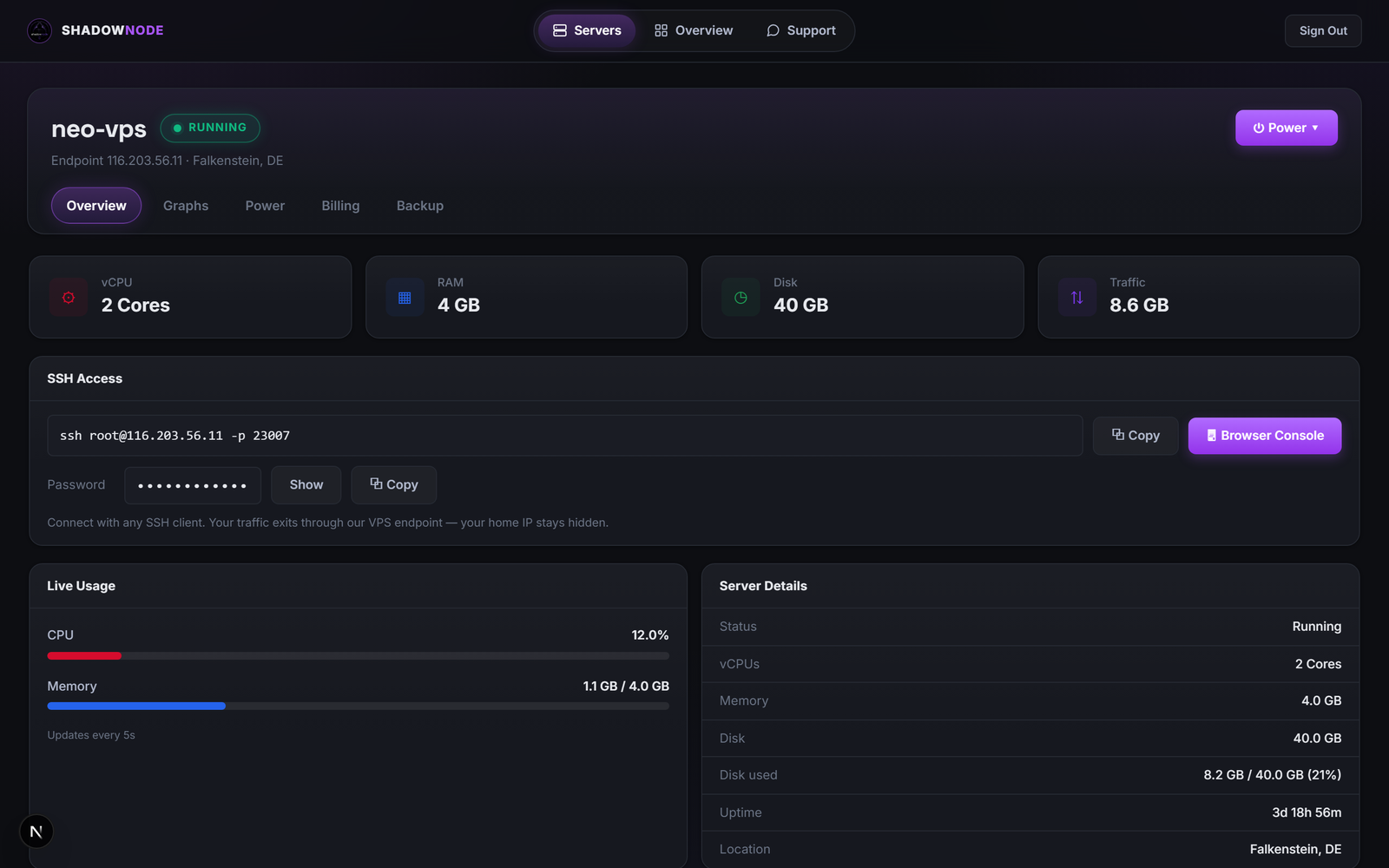
The VPS view shows your specs (vCPU, RAM, disk, traffic) and a SSH Access card — copy the ready-made ssh command, reveal or copy the root password, or open the Browser Console (noVNC) if SSH is ever locked out. The Power menu starts/stops/restarts; tabs add Graphs, Billing and Backup.
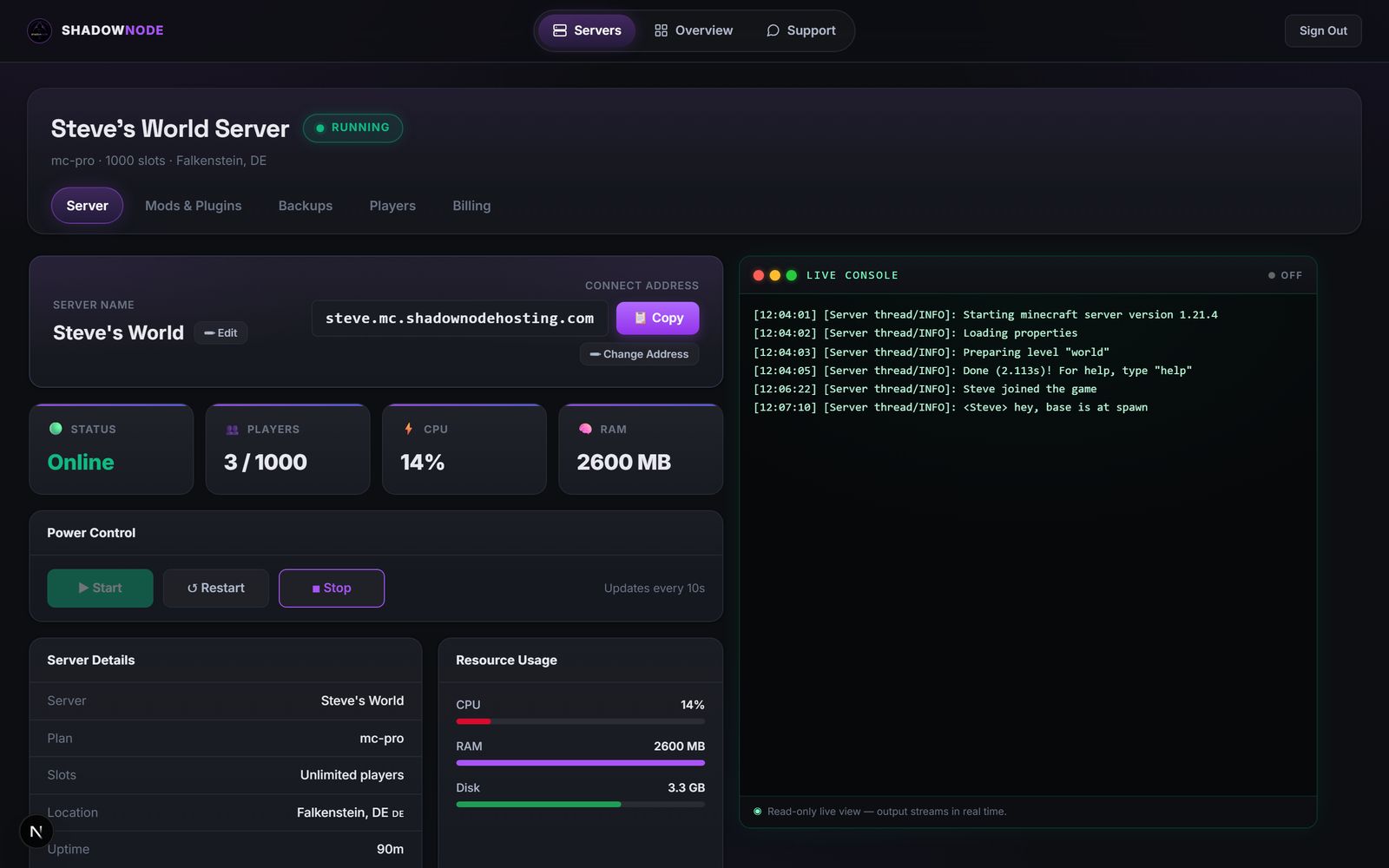
The game-server view has your connect address (one-click copy, editable), live status tiles (players, CPU, RAM), Power Control (start/restart/stop) and a read-only live console streaming the server log in real time. Tabs cover Mods & Plugins, Backups, Players (op/whitelist/ban) and Billing.