 SHADOWNODE
SHADOWNODE
SHADOWNODE
Guides / Encrypted cloud
AES-256 at rest, optional true end-to-end encryption, and it speaks every sync protocol. Here’s how to open it and lock it down.
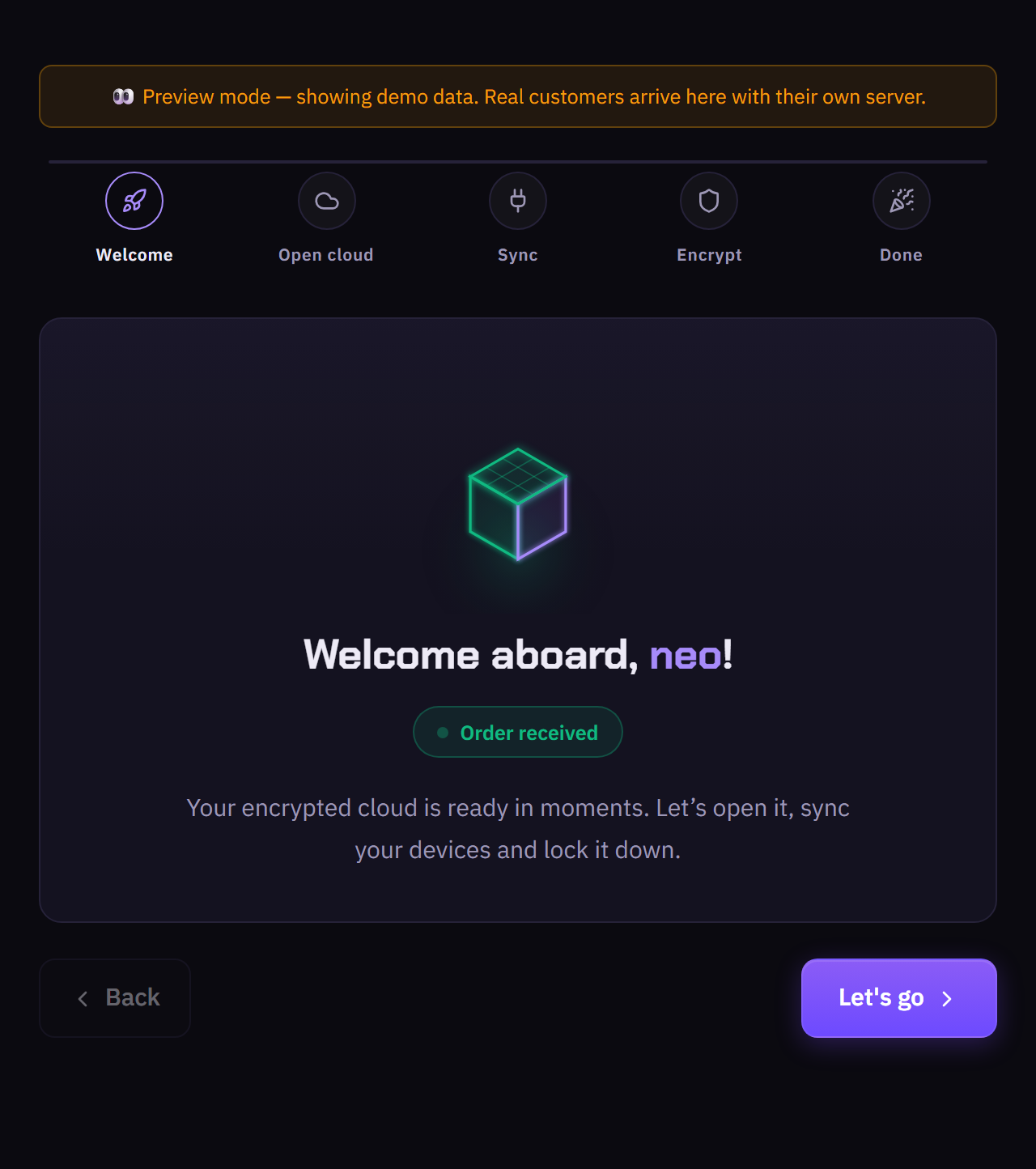
Your encrypted cloud is ready in moments. This guide opens it, syncs your devices and turns on zero-knowledge encryption.
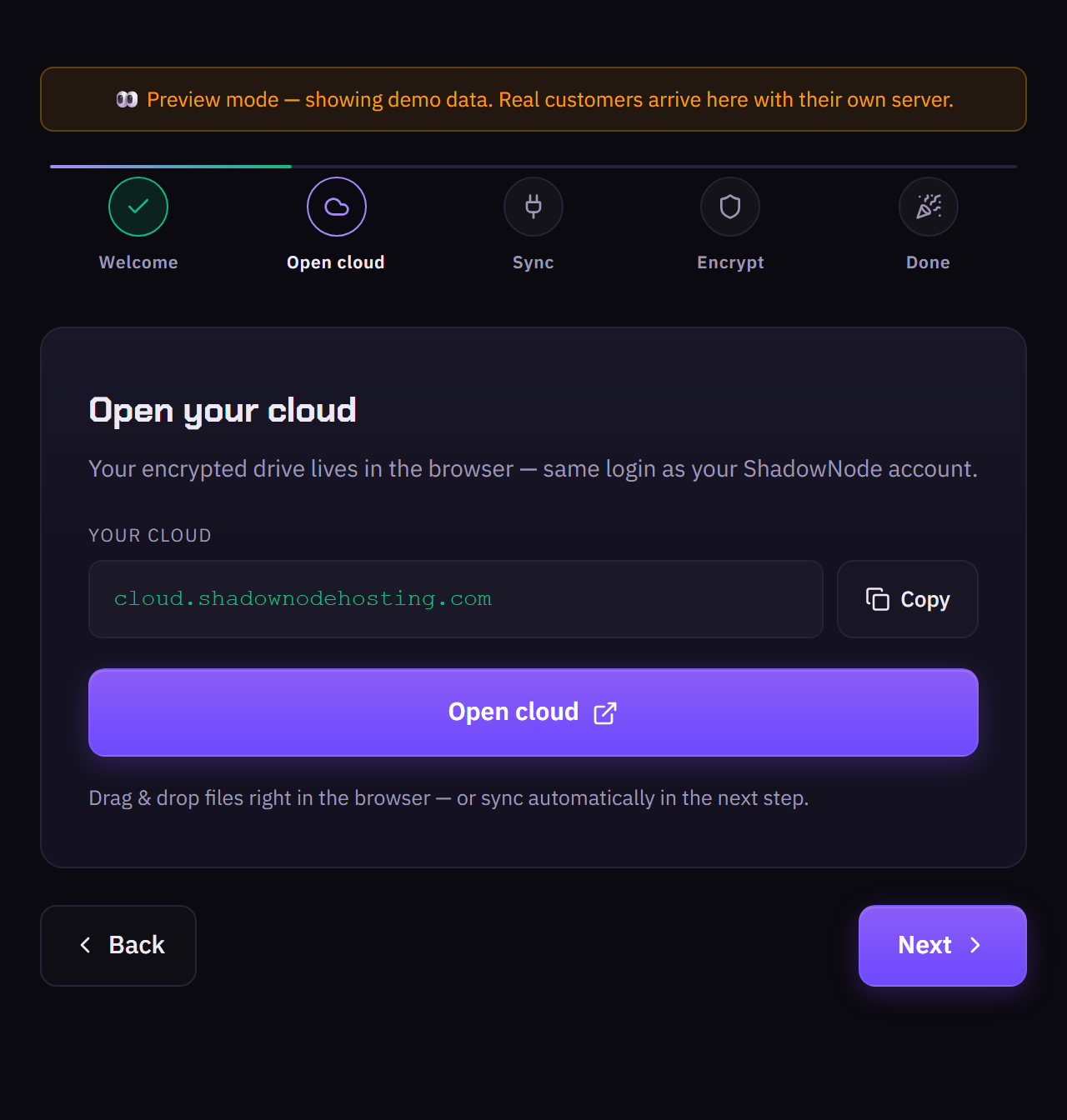
Your drive lives in the browser — same login as your ShadowNode account. Drag & drop files right away, or set up automatic sync in the next step.
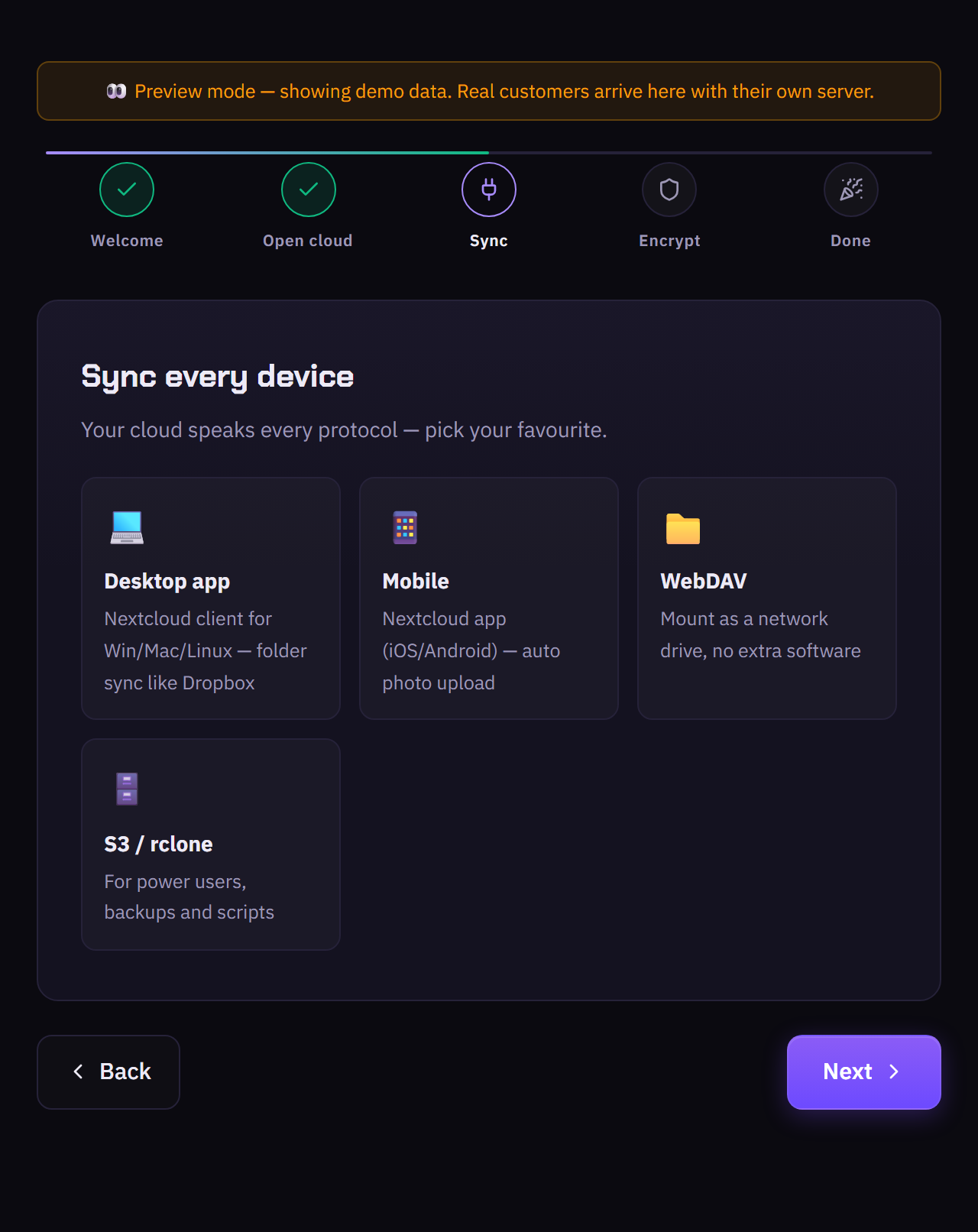
Pick your favourite: the Desktop app (Win/Mac/Linux folder sync like Dropbox), Mobile (iOS/Android with auto photo upload), WebDAV (mount as a network drive), or S3 / rclone for backups and scripts.
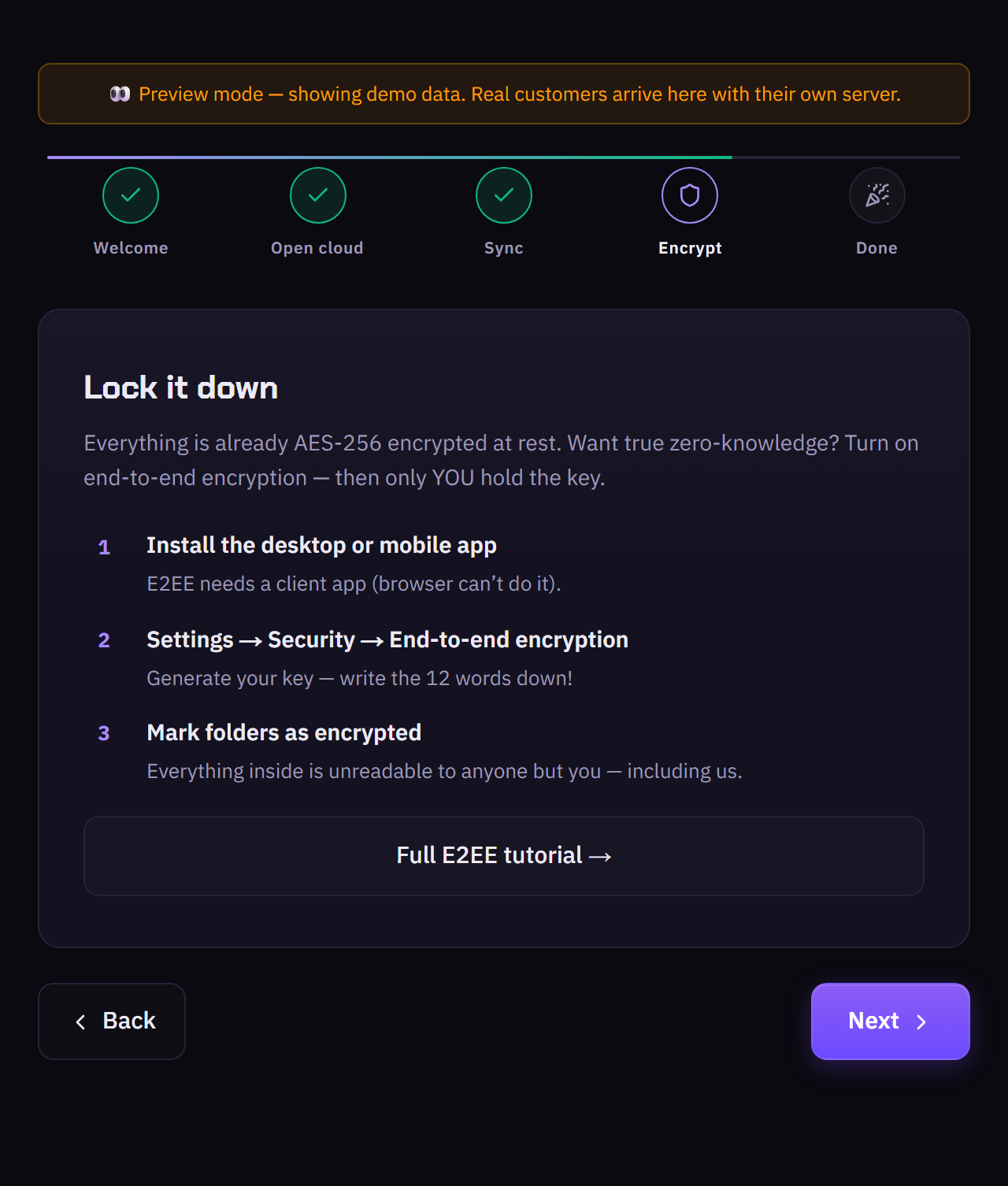
Everything is already AES-256 encrypted at rest. For true zero-knowledge, turn on end-to-end encryption: install the app, go to Settings → Security → End-to-end encryption, generate your key, and mark folders as encrypted.
Manage storage, upgrades and sharing from your console — log in anytime with your ShadowNode account.