 SHADOWNODE
SHADOWNODE
SHADOWNODE
Guides / Cloud VPS
Full root, NVMe SSD, German hardware. This walkthrough follows the wizard from payment to your first login.
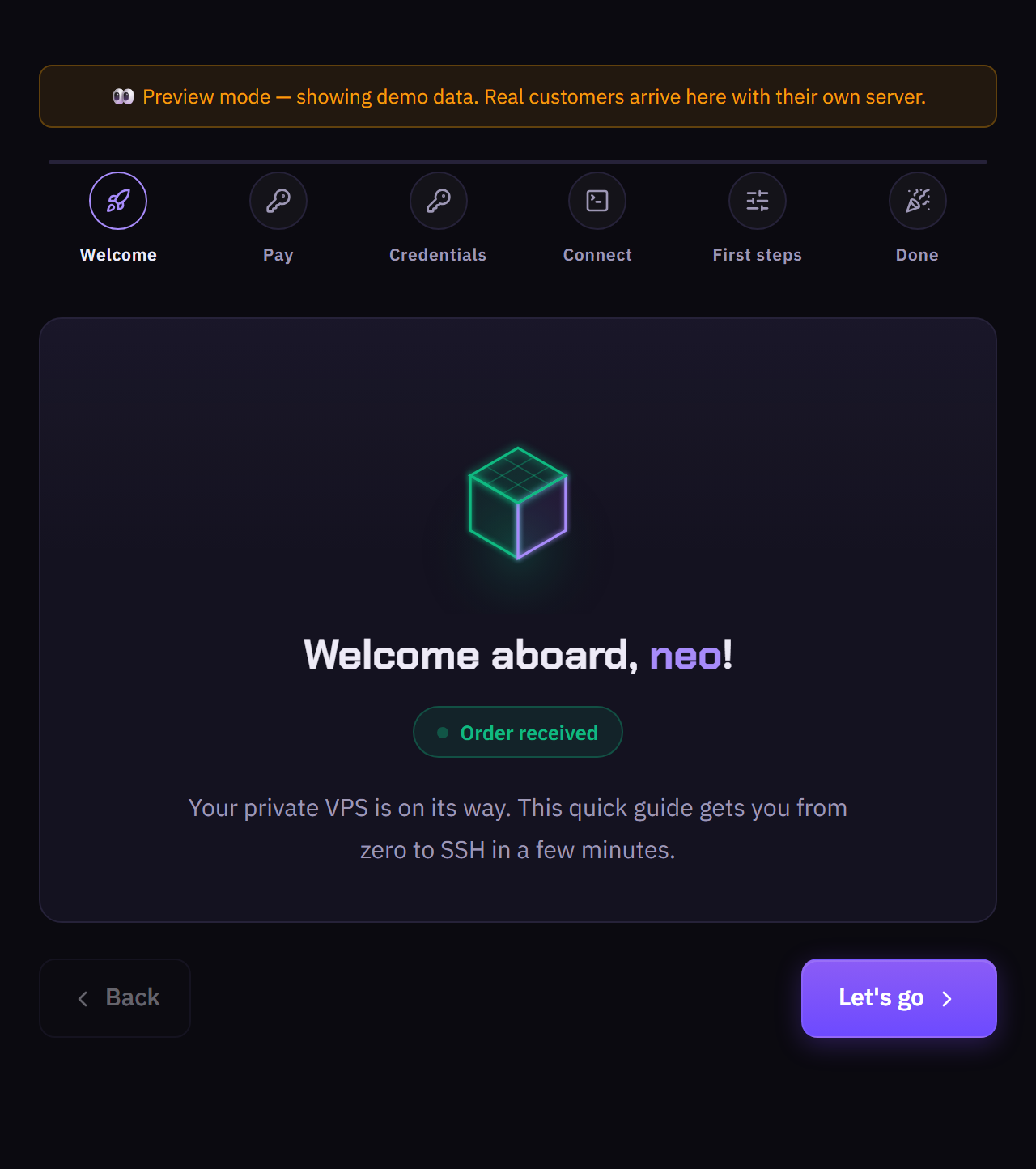
Your order is received and your VPS is being prepared. This guide gets you from zero to SSH in a few minutes.
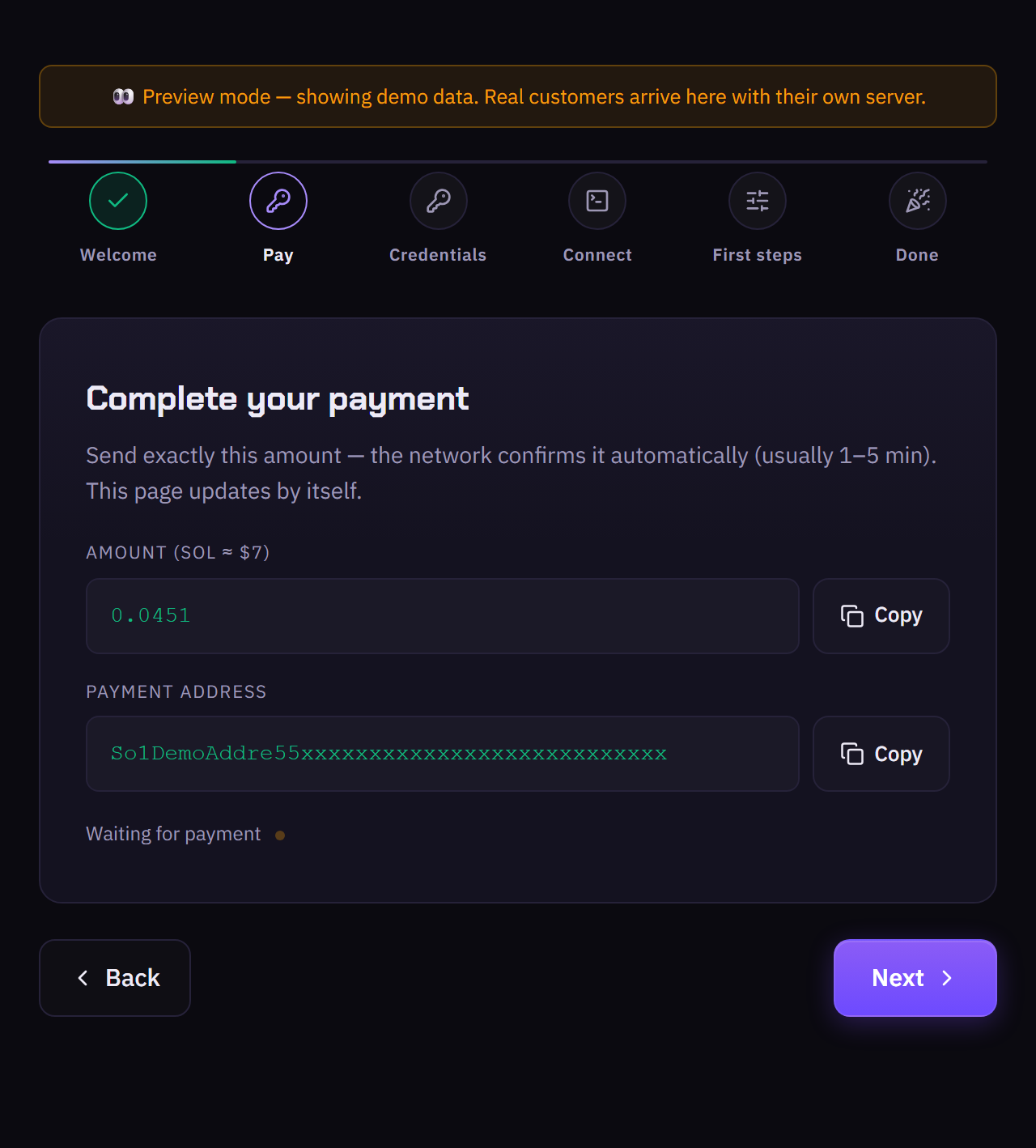
Send exactly the shown amount — the network confirms it automatically (usually 1–5 min) and the page updates by itself. Pay with BTC, ETH, SOL or Polygon, or submit a gift-card code. No account or KYC needed.
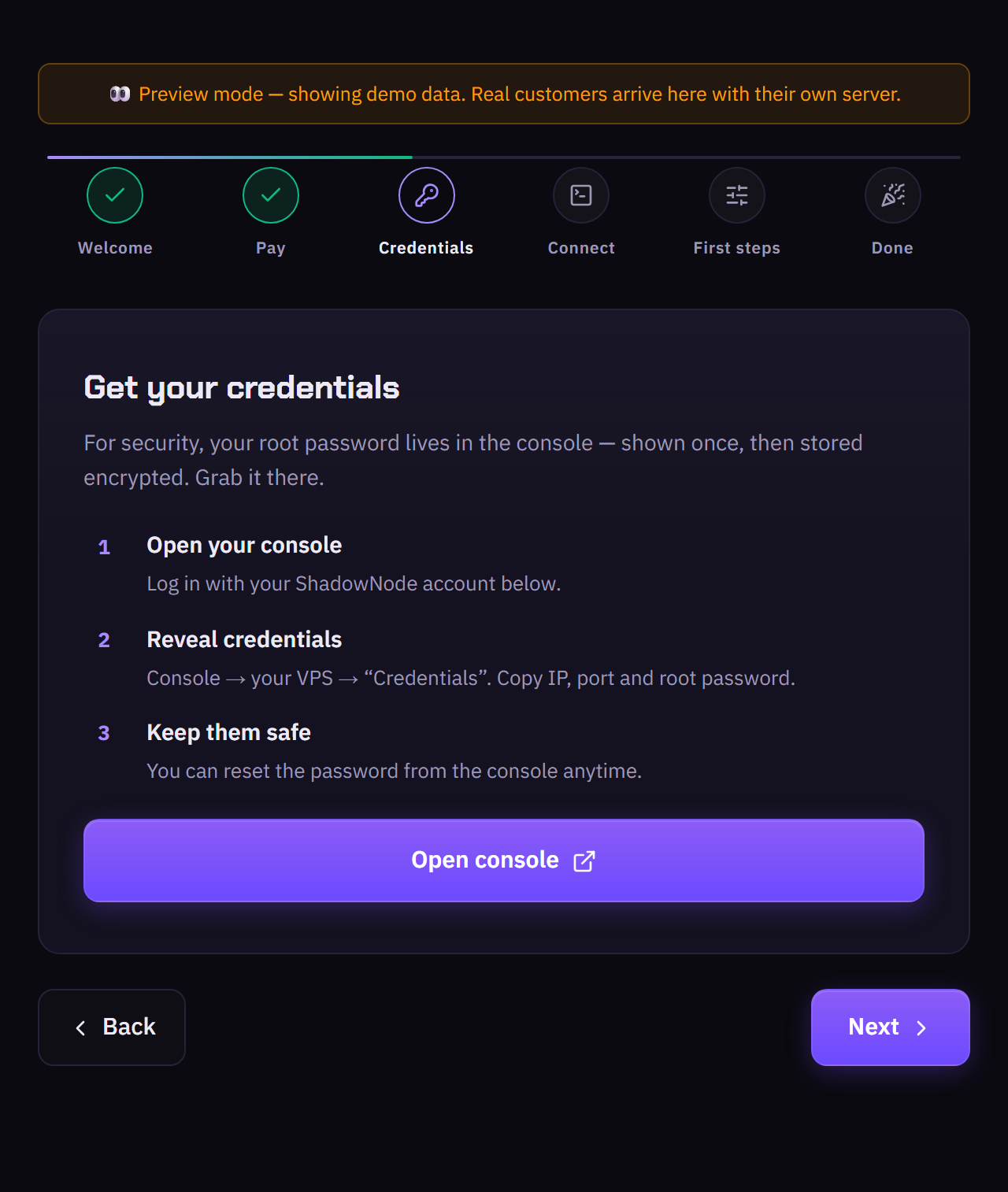
For security your root password lives in the console — shown once, then stored encrypted. Open the console, go to your VPS → Credentials, and copy the IP, port and root password.
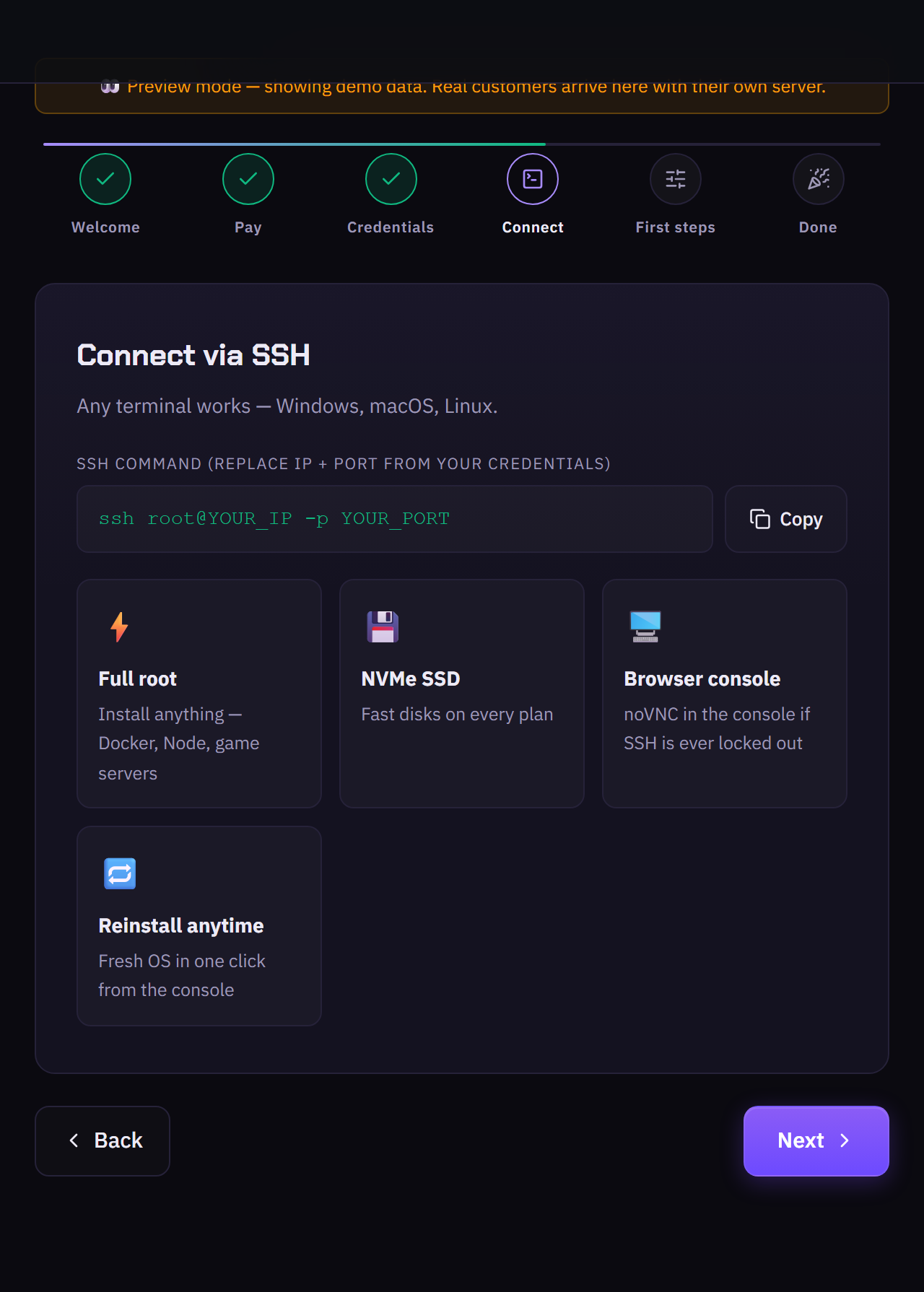
From any terminal (Windows, macOS, Linux): ssh root@YOUR_IP -p YOUR_PORT. Full root lets you install anything — Docker, Node, game servers. A browser noVNC console is there if SSH ever locks out.
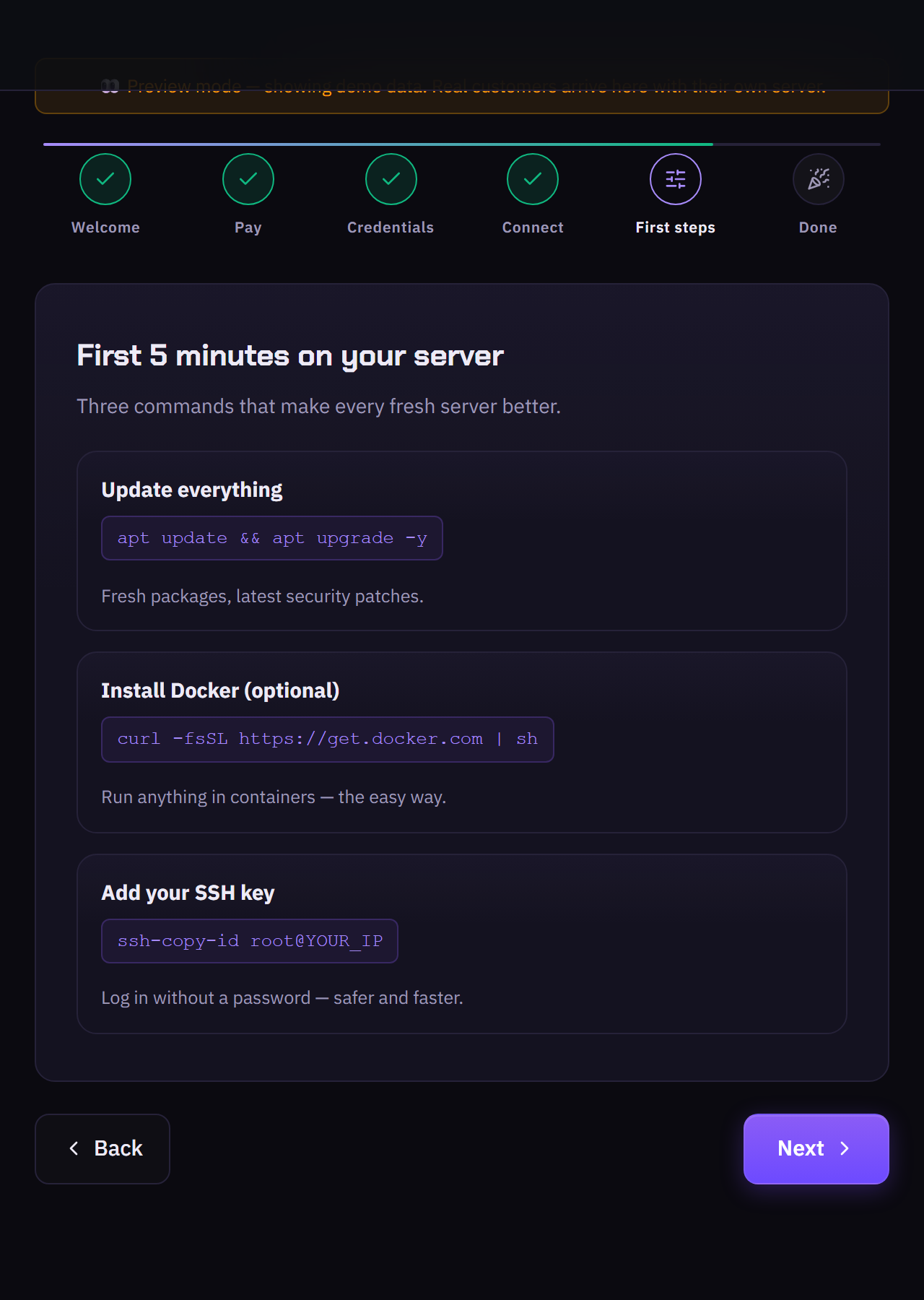
Three commands that improve every fresh server: apt update && apt upgrade -y, install Docker with curl -fsSL https://get.docker.com | sh, and add your SSH key with ssh-copy-id so you can log in without a password.
Everything lives in your console — credentials, power controls, reinstall and upgrades. See the Using your console guide for the full tour.